# Implementing Bloom Custom Pixel

Note: Please ensure all steps in “[Setting Up the Bloom Custom Pixel](https://docs.bloomanalytics.io/~/revisions/XMbKSjK2DLqHwsienmXB/bloom-pixel/setting-up-the-bloom-custom-pixel-1)” are completed before proceeding.

#### Step 1 - Log in to your Shopify admin panel and navigate to **Settings > Customer events**.

#### Step 2 - Click on **" Add custom pixel"**

<figure><img src="/files/XCrhAFca0QjDVFkA9hQV" alt=""><figcaption></figcaption></figure>

####

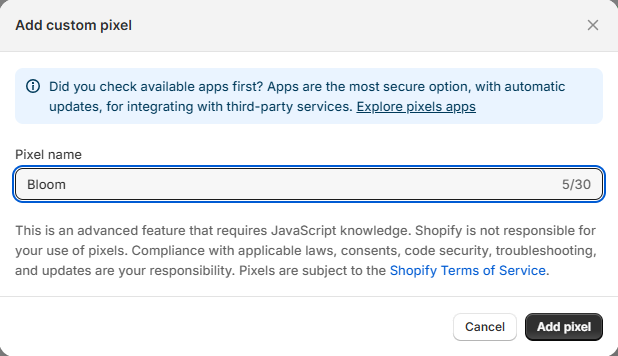
#### Step 3 - Provide a custom name for your pixel. You’ll be prompted to change it if it’s already in use.

<figure><img src="/files/Ez3J6U0033IfCmI55LfM" alt=""><figcaption></figcaption></figure>

#### Step 4 - Update the privacy setting.

<figure><img src="/files/OuSFtlwljD2ew07I5TZh" alt=""><figcaption></figcaption></figure>

#### Step 5 - Paste your BloomPixel Customer Events JavaScript code into the code window. Save your changes and confirm the pixel is firing correctly on your storefront.

Ensure you replace **\[your-domain]** in the script with your actual domain (e.g., **example.com** or **example.com.au**) before adding it.<br>

<pre><code>
analytics.subscribe("checkout_completed", async (event) => {
  try {
    const checkout = event.data.checkout;
    const visitorId = document.cookie
      .split(';')
      .find(c => c.trim().startsWith('bloom_tracker_v10='))
      ?.split('=')[1] || null;

    
        await fetch('https://bloom.<a data-footnote-ref href="#user-content-fn-1">[your-domain]</a>', {
      method: 'POST',
      headers: { 'Content-Type': 'application/json' },
      body: JSON.stringify({
        event: 'checkout_completed',
        url: event.context?.document?.location?.href,
        cookie_value: visitorId,
        event_payload: JSON.stringify({
          orderId: checkout.order?.id,
          checkoutToken: checkout.token
        }),
        source: 'CustomBloomPixel',
        shop: event.context?.document?.location?.host,
        storeFrontURL: event.context?.window?.origin,
        buyerEmail: checkout.email
      }),
      keepalive: true
    });
  } catch (error) {
    console.error('Bloom tracking error:', error);
  }
});
</code></pre>

<figure><img src="/files/nBdRCz7y7XnkImneIPZa" alt=""><figcaption></figcaption></figure>

#### Step 6 -Save your changes and verify that the pixel is firing correctly on your storefront.

[^1]: Replace this with your actual domain.


---

# Agent Instructions: Querying This Documentation

If you need additional information that is not directly available in this page, you can query the documentation dynamically by asking a question.

Perform an HTTP GET request on the current page URL with the `ask` query parameter:

```
GET https://docs.bloomanalytics.io/bloom-pixel-custom-domain/implementing-bloom-custom-pixel.md?ask=<question>
```

The question should be specific, self-contained, and written in natural language.
The response will contain a direct answer to the question and relevant excerpts and sources from the documentation.

Use this mechanism when the answer is not explicitly present in the current page, you need clarification or additional context, or you want to retrieve related documentation sections.