> For the complete documentation index, see [llms.txt](https://docs.bloomanalytics.io/llms.txt). Markdown versions of documentation pages are available by appending `.md` to page URLs; this page is available as [Markdown](https://docs.bloomanalytics.io/profit/order-profits.md).
# Order Profits
See profit, margins, and costs for every Shopify order in Bloom, and update shipping, handling, gateway, and COGS costs with a simple export and import.
### What is Order Profits?
**Order Profits** is a page in Bloom that breaks down financial performance at the order level. It combines sales, taxes, costs, and margins for every order in one table, so you can see how each order contributes to overall profitability and how operational expenses like shipping, gateway fees, and handling affect the business.
### Data available
**Order Profits table**\
\
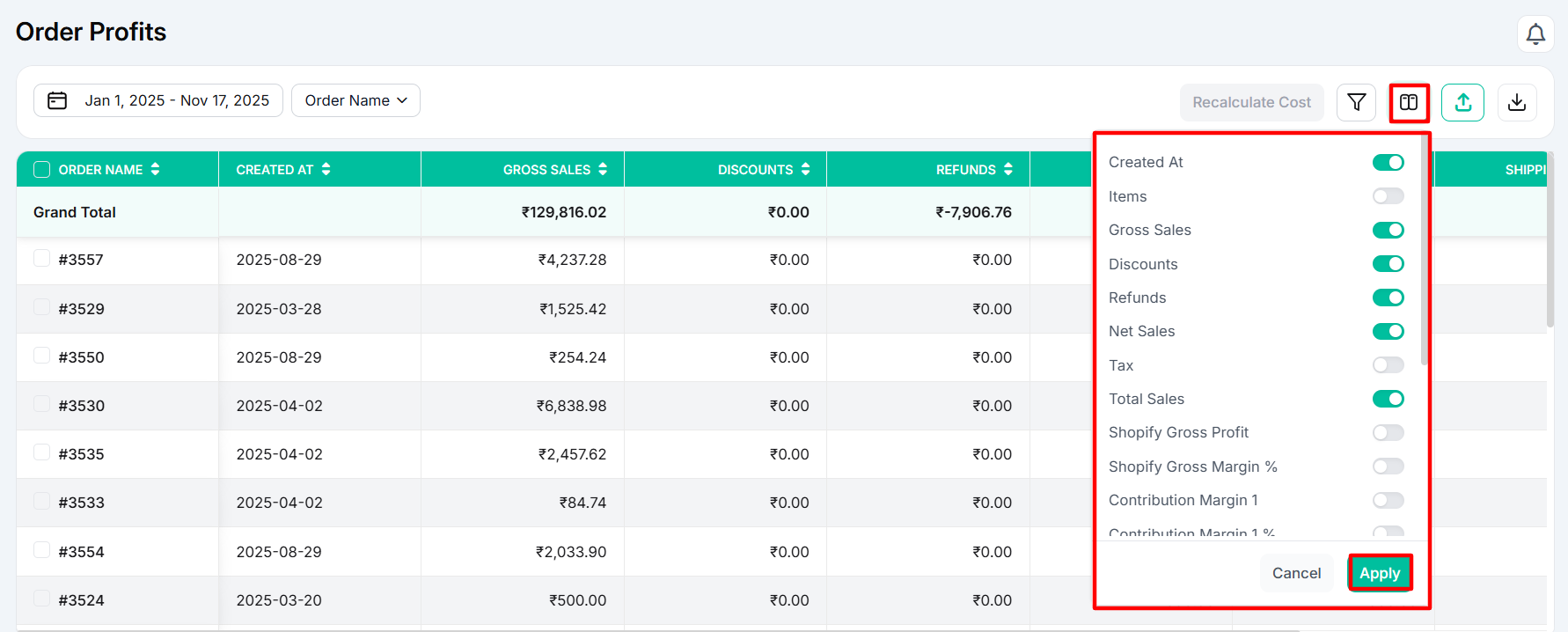
The Order Profits table lists every order in the selected date range with its sales, costs, and margin metrics. Use the column selector to choose which of the following metrics appear.
| Metric | Description |
| ------------------------ | ----------------------------------------------------------------------------------------------------------------- |
| Items | Displays the products included in the order. |
| Order Source | Shows where the order originated, such as Online Store, POS, or other sales channels. |
| Gross Sales | The total value of items sold before discounts and refunds. |
| Discounts | The total discounts applied to the order. |
| Refunds | The total amount refunded for the order. |
| Net Sales | Revenue remaining after discounts and refunds. |
| Tax | The total tax collected for the order. |
| Tags | Displays any Shopify order tags assigned to the order. |
| Total Sales | The final order value, including taxes and shipping charges where applicable. |
| Shopify Gross Profit | Shows the profit after subtracting product costs from net sales using Shopify's cost data. |
| Shopify Gross Margin % | Indicates the percentage of revenue retained as gross profit based on Shopify costs. |
| Contribution Margin 1 | Profit remaining after deducting product costs and transaction fees. |
| Contribution Margin 1 % | The percentage of revenue retained as Contribution Margin 1. |
| Profit after fulfillment | Profit remaining after deducting product, fulfillment, and transaction costs. |
| Contribution Margin 2 % | The percentage of revenue retained after fulfillment costs. |
| Gateway Cost | Payment processing fees charged by your payment gateway. |
| Shipping Cost | The shipping cost incurred to fulfill the order. |
| Product Variant COGS | The cost of goods sold for the specific product variants in the order. |
| Handling Cost | Additional handling or packaging costs assigned to the order. |
| Channel Fee | Fees charged by the sales channel or marketplace for the order. |
| Tariff Cost | Import duties or tariff costs allocated to the order. |
| Customization Cost | Tracks additional costs for customized orders based on order tags or line item properties that you've configured. |
| Disputes | Costs resulting from payment disputes or chargebacks associated with the order. |
### How to use it
**How to View Order Profits?**
* Select the date range you want to analyze. Bloom updates the table to show all orders within that period.
* Use the column selector to choose which metrics appear in the table.
* Use the **Order Name** dropdown to search for a specific order by its Order Name to locate and analyze individual orders
* To update order-level Shipping Cost, Gateway Cost, Handling Cost, or COGS, export the table in Excel, CSV, or PDF format.
* In the exported file, edit only the Shipping Cost, Gateway Cost, and Handling Cost columns. Editing other columns can cause import errors.
* Upload the edited file back into Bloom.
* Click Recalculate. Bloom applies the updated costs and refreshes the Order Profits page.
* To view data based on Order Tags or Order Source, use the filters in Order Profits.
* To exclude certain orders from your reports and profit calculations, go to App Settings, then Order Settings, and configure your order exclusion rules.